
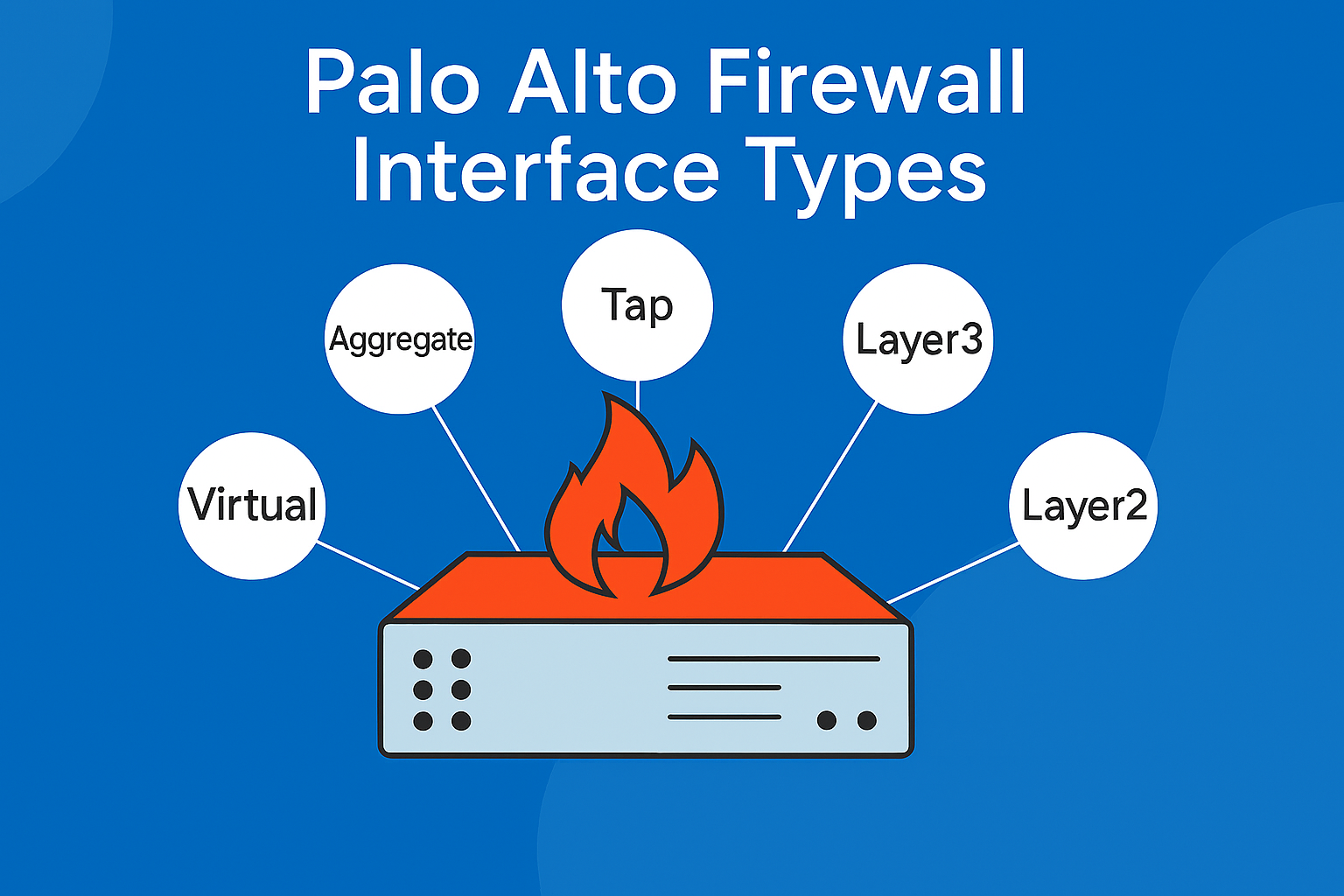
Palo Alto firewall interface types are different kinds of connections that help the firewall control and route network traffic. These interfaces can be configured in multiple modes to support diverse deployment scenarios, including traditional routing, transparent bridging, and VPN tunneling.
Understanding how to configure and manage these interfaces is essential for network administrators aiming to implement a secure and resilient network infrastructure. This article provides a detailed overview of interface types, configuration procedures, high availability (HA) setups, best practices, and much more helpful information.
Understanding Interface Types
Palo Alto Networks firewalls have various interface types. The five main categories are Layer 2, Layer 3, Virtual Wire (vWire), TAP, and HA. Other important interface types include aggregate Ethernet, loopback, tunnel, VLAN, and SD-WAN.
They are given below:
Layer 2 Interface:
A Layer 2 interface is a Palo Alto firewall interface type that works like a network switch port. It forwards frames within the same network segment based on MAC addresses and can be configured with or without VLANs to separate traffic. This interface type is used when devices need to communicate in the same broadcast domain without routing.
Features:
- Operates at the data link layer (Layer 2)
- Switches traffic within the same subnet or VLAN
- Supports VLAN tagging for network segmentation
- Forwards traffic based on MAC addresses
- Suitable for scenarios requiring switching between devices
- Can be part of VLAN groups for logical segmentation
Layer 3 Interface:
A Layer 3 interface is a Palo Alto firewall interface type that functions as a routed interface with an IP address, enabling traffic to be routed between different subnets or networks. It requires configuration of IP addresses, virtual routers, and security zones. Layer 3 interfaces are more advanced and support both IPv4 and IPv6 protocols.
Features:
- Operates at the network layer (Layer 3)
- Routes traffic between different IP subnets or networks
- Requires IP address assignment and virtual router configuration
- Supports IPv4 and IPv6 addressing (dual stack)
- Enables granular security policies across zones
- Supports dynamic routing protocols and DHCP-client configurations
These interfaces serve distinct roles, with Layer 2 focusing on switching within a local network segment and Layer 3 managing inter-network routing and security enforcement.
Virtual Wire (VWire) Interfaces
Virtual wire interfaces allow the firewall to be deployed transparently between two network segments without requiring IP addressing or routing changes. This mode is particularly useful for inline deployments where the firewall inspects traffic without altering the network topology.
Key characteristics:
- No IP or MAC address required.
- Transparent to network devices.
- Supports Layer 1 and Layer 2 inspection.
- Commonly used for passive monitoring or inline threat prevention.
Tunnel Interface
Tunnel interfaces are logical constructs used for VPN connectivity, including IPsec and GRE tunnels. They facilitate secure communication between remote sites or users. These interfaces are assigned to zones and virtual routers, enabling encrypted traffic routing across public networks while maintaining policy enforcement and segmentation.
Key characteristics:
- Logical interface used for VPN connectivity.
- Supports IPsec, GRE, and SSL VPN configurations.
- Assigned to zones and virtual routers.
- Enables encrypted traffic routing across public networks.
- Works with routing protocols for dynamic path selection.
Aggregate Ethernet (AE) Interface
Aggregate Ethernet interfaces combine multiple physical links into a single logical interface for increased bandwidth and redundancy. Using LACP, they enhance fault tolerance and throughput. AE interfaces are ideal for high-availability environments, data centers, etc
Key characteristics:
- Logical interface is always in an “up” state.
- Requires IP address assignment.
- Used for routing protocol endpoints.
- Provides stable management access.
- Not tied to any physical port..
Loopback Interface
Loopback interfaces are logical interfaces that remain operational unless manually disabled. They are used for testing, management access, and routing protocol endpoints. Assigned IP addresses, loopbacks provide a stable interface for administrative tasks and are commonly used in dynamic routing configurations and internal diagnostics.
Key characteristics:
- Logical interface is always in an “up” state.
- Requires IP address assignment.
- Used for routing protocol endpoints.
- Provides stable management access.
- Not tied to any physical port.
Tap Interface
Tap interfaces are designed for passive traffic monitoring. They capture packets without altering or affecting network flow. Typically connected to SPAN or mirror ports, tap interfaces are used for intrusion detection, forensic analysis, and traffic visibility, offering insight into network behavior without introducing latency or disruption.
Key characteristics:
- Passive traffic monitoring without altering the flow.
- Captures packets for analysis and inspection.
- No IP or MAC configuration required.
- Typically connected to SPAN or mirror ports.
- Ideal for IDS/IPS and forensic investigations.
If you want to get online training from certified professionals, check out the Best Palo Alto firewall training courses in India, by UniNets.
Step-by-Step Interface Configuration Guide
Configuring interfaces on a Palo Alto firewall involves several steps, depending on the interface type. Below is a general guide for configuring a Layer 3 interface:
Step 1: Access the Firewall Management Interface
Log in to the Palo Alto firewall’s web interface using a supported browser. The default URL is typically https://<firewall-management-IP>. Ensure you have administrative privileges to make configuration changes.
Step 2: Navigate to the Network Interface Settings
From the main dashboard, go to the top navigation menu and select: Network > Interfaces This section displays all physical and logical interfaces available on the device.
Step 3: Select the Interface to Configure
Identify the physical interface you want to configure (e.g., ethernet1/1). Click the corresponding “Edit” icon to open the configuration window for that interface.
Step 4: Choose the Appropriate Interface Type
In the configuration window, set the Interface Type based on your deployment needs. For routing purposes, select Layer3. Other options include Layer 2, Virtual Wire, Tunnel, and Aggregate Ethernet.
Step 5: Assign the Interface to a Virtual Router
Under the Config tab, assign the interface to a Virtual Router. This determines the routing table the interface will use. If no virtual router exists, create one under Network > Virtual Routers.
Step 6: Assign the Interface to a Security Zone
Still under the Config tab, assign the interface to a Security Zone. Zones are used to define security policies. You can select an existing zone or create a new one that aligns with your network segmentation strategy.
Step 7: Configure the IP Address
Navigate to the IPv4 tab and click Add to assign a static IP address and subnet mask to the interface. Alternatively, you can configure the interface to obtain an IP address via DHCP if required.
Step 8: Set Up a Management Profile (Optional but Recommended)
Go to the Advanced > Management Profile section. Assign a management profile that defines which services (e.g., Ping, SSH, HTTPS) are allowed on the interface. Create a new profile under Network > Network Profiles > Interface Mgmt if needed.
Step 9: Enable Link Speed and Duplex Settings (Optional)
Under the Advanced tab, you can manually configure link speed and duplex settings. By default, these are set to auto-negotiate. Modify only if your environment requires specific settings.
Step 10: Commit the Configuration
After completing the interface setup, click OK to save the changes. Then, click the Commit button in the upper-right corner of the web interface to apply the configuration to the firewall.
Step 11: Verify Interface Status and Connectivity
Navigate to Dashboard > Network Interfaces or use the CLI command show interface ethernet1/1 to verify the interface is up and operational. Confirm that the IP address is correctly assigned and the interface is passing traffic.
Step 12: Apply Security Policies
Go to Policies > Security and create or update rules to allow or deny traffic between zones. Ensure that the new interface’s zone is included in the appropriate policies to enable legitimate traffic flow.
Step 13: Configure Static or Dynamic Routing (If Applicable)
If the interface is part of a routed network, configure static routes or enable dynamic routing protocols under Network > Virtual Routers. This ensures proper path selection and reachability across networks.
Step 14: Monitor Interface Performance
Use Monitor > Logs > Traffic and Dashboard > Interface Statistics to observe traffic patterns, bandwidth usage, and error rates. This helps in validating the configuration and identifying potential issues.
Step 15: Back up the Configuration
Once the interface is fully configured and tested, navigate to Device > Setup > Operations and select Save Named Configuration Snapshot. This ensures you can restore the working configuration if needed.
For Layer 2 and VWire interfaces, the steps are similar, with adjustments to interface type and zone assignments. VLANs must be configured for Layer 2 interfaces, and paired interfaces must be defined for VWire.
High Availability (HA) Interface Configuration
High Availability (HA) ensures continuity of service by allowing two Palo Alto firewalls to operate as a failover pair. HA can be configured in Active/Passive or Active/Active modes.
Key HA Interfaces
- HA1 (Control Link): Used for heartbeat and configuration synchronization.
- HA2 (Data Link): Transfers session and forwarding tables.
- HA3 (Packet Forwarding Link): Used in Active/Active mode for asymmetric traffic handling.
Configuration Steps
- Enable HA by navigating to Device > High Availability and enabling HA.
- Configure HA1 and HA2 interfaces by assigning physical interfaces for HA1 and HA2.Set IP addresses and peer IPs.
- Set Group ID and Mode by assigning a unique Group ID and selecting Active/Passive or Active/Active mode.
- Configure Link and Path Monitoring by defining monitored interfaces and destination IPs to detect failures.
- Commit and test the configuration and test failover functionality.
Palo Alto’s HA implementation offers granular control over failover conditions, including preemption, link monitoring, and path monitoring, making it suitable for mission-critical environments. Join the Online Palo Alto Firewall training with free labs to learn more about the technical aspects.
Firewall Interface Configuration Best Practices
To ensure optimal performance, security, and manageability, consider the following best practices:
- Clearly label interfaces, zones, and virtual routers for easier management.
- Assign interfaces to appropriate security zones to enforce policy boundaries.
- Use management profiles to restrict access to necessary services only.
- Define policies based on source and destination zones for better control.
- Configure log forwarding and SNMP for visibility and alerting.
- Combine interfaces using AE to improve fault tolerance and throughput.
- Monitor traffic patterns and interface health to detect anomalies.
Troubleshooting Common Interface Issues
Interface-related issues can disrupt network connectivity and security enforcement. Common problems and their resolutions include:
- Interface Down: Check cables, transceivers, and switch port status. Ensure the interface is enabled and verify link status using the show interface.
- No IP Connectivity: Confirm IP address and subnet mask. Ensure correct virtual router assignment and check for routing conflicts or missing gateways.
- Zone Misalignment: Verify the interface is in the correct security zone. Ensure policies allow traffic between zones and review rule coverage.
- Management Access Blocked: Apply a management profile that permits required services (e.g., HTTPS, SSH). Confirm the source IP is allowed.
- HA Failover Issues: Inspect HA1/HA2 links and IPs. Review link/path monitoring settings and use the show high-availability state for diagnostics.
- Routing Failures: Check static/dynamic routes in the virtual router. Use the show routing route to verify next-hop reachability.
- Traffic Not Passing: Review NAT and security policies. Use traffic logs and packet capture to trace and analyze the flow.
- Interface Errors: Monitor for CRC errors or collisions. Use the show counter interface and check duplex/speed settings.
- VLAN Tagging Problems: Ensure VLAN IDs match switch configuration. Use the show vlan command to verify assignments and interface membership.
- Tunnel Interface Down: Check VPN phase 1/2 status. Use show vpn ike-sa and show vpn ipsec-sa. Confirm routing and zone setup.
Interface Monitoring and Management Tools
Effective monitoring is essential for maintaining firewall health and performance. Palo Alto provides several tools for interface monitoring:
- Dashboard Widgets: Real-time interface statistics and health indicators.
- Traffic and Threat Logs: Detailed logs for traffic analysis and threat detection.
- CLI Commands: show interface all, show counter interface, and debug dataplane for in-depth diagnostics.
- SNMP and Syslog Integration: Export metrics to external monitoring systems for centralized visibility.
- Panorama: Centralized management platform for monitoring multiple firewalls.
- RESTful API: Automate interface monitoring and configuration using API calls.
These tools enable proactive monitoring, rapid troubleshooting, and efficient management of firewall interfaces.
Differences Between Palo Alto Interfaces and Other Vendors (e.g., Sophos)
While both Palo Alto and Sophos offer enterprise-grade firewalls, their interface architectures differ significantly in design and capabilities.
| Feature | Palo Alto Networks | Sophos Firewall |
| Interface Types | Layer 2, Layer 3, VWire, Tunnel, AE | LAN, WAN, DMZ, RED, Bridge, VLAN |
| Transparent Mode | Virtual Wire (VWire) | Bridge Mode |
| VPN Interface Support | Tunnel Interfaces with advanced routing | RED interfaces, IPsec, SSL VPN |
| HA Configuration | Advanced with link/path monitoring | Simplified HA with limited failover options |
| Management Tools | Panorama, CLI, SNMP, REST API | Sophos Central, SNMP |
| Routing Capabilities | Full dynamic routing (OSPF, BGP, RIP) | Static and limited dynamic routing |
| Interface Monitoring | Real-time stats, CLI, API, Panorama | GUI-based monitoring, SNMP |
Palo Alto offers more flexibility and control, especially in complex network environments, while Sophos emphasizes ease of use and simplified deployment.
Summary
Palo Alto firewall interfaces are a cornerstone of its security architecture, offering a wide range of deployment options through Layer 2, Layer 3, VWire, and tunnel configurations.
Proper interface configuration is critical for ensuring secure, efficient, and resilient network operations. By following best practices, leveraging monitoring tools, and understanding the nuances of HA and interface types, administrators can maximize the value of their Palo Alto deployment.
